
If you’re using PostHog to track user behavior and product analytics, it’s essential to filter out internal team members and test accounts to keep your data accurate. In this guide, you’ll learn how to set up PostHog internal user filtering to ensure clean and reliable analytics.
Why You Should Filter Internal Users in PostHog
By default, PostHog captures all events; including those from developers, marketers, QA testers, and anyone on your team. This can skew data and lead to misleading insights. Setting up filters for internal and test users in PostHog helps:
- Keep your conversion rates accurate
- Ensure event data reflects real user behavior
- Avoid false signals in A/B testing
Here’s how to exclude internal users from tracking in PostHog:
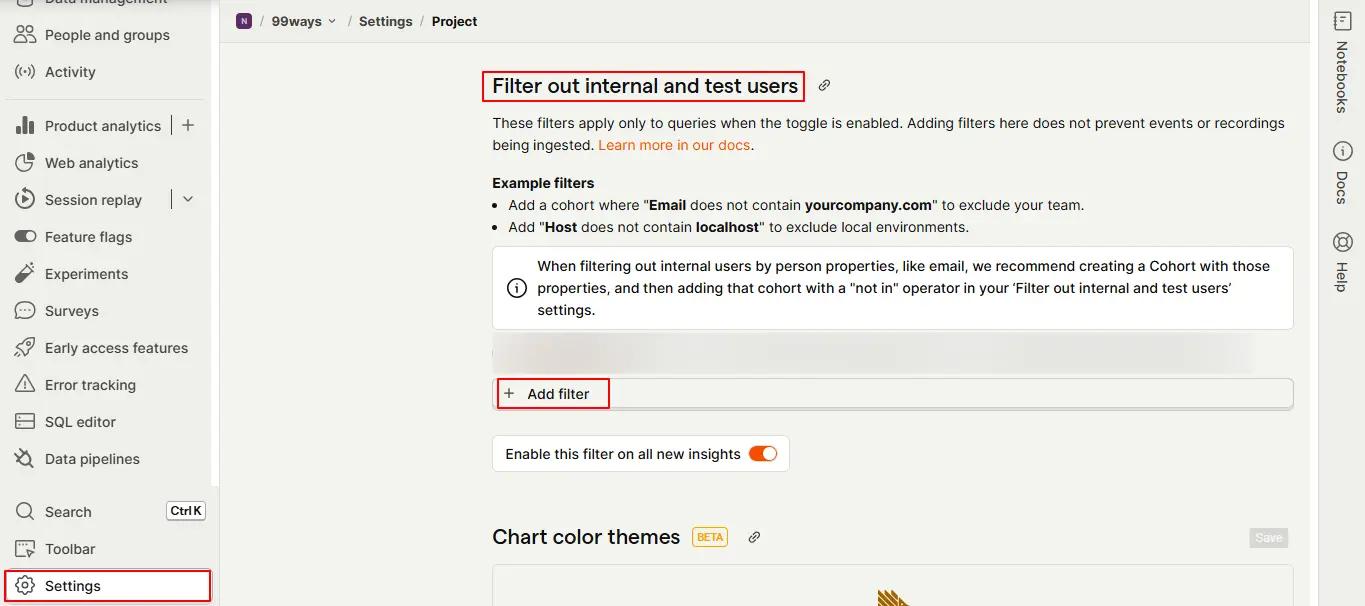
1. Go to Settings
From the PostHog sidebar, navigate to Settings. Scroll down to find the section called “Filter out internal and test users.”
2. Add Filtering Rules
Below is a breakdown of the most common filters teams use (as we do); explained individually so you know exactly when and why to apply each one.
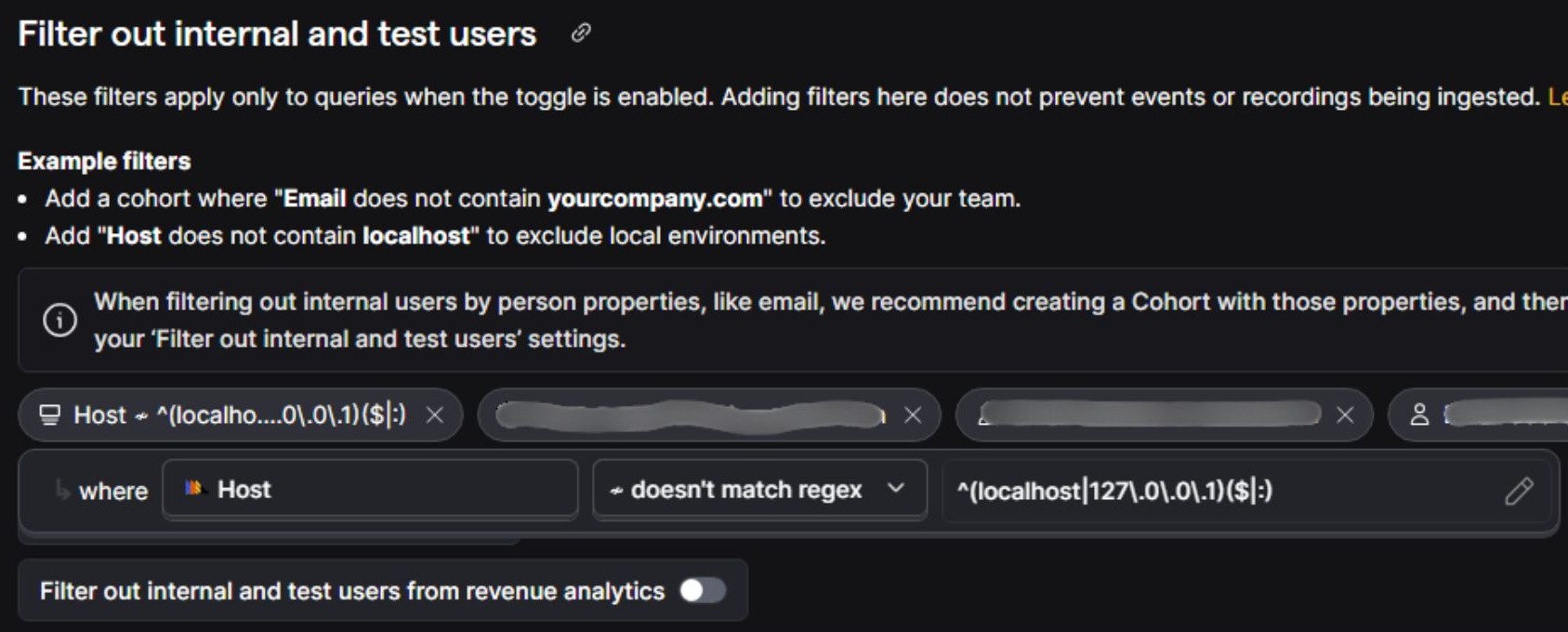
Internal user filtering based on Host (exclude localhost and preview environments):
Use this to block events coming from development environments, staging URLs, or preview links.
Examples
- Host ≠ ^(localhost|127.0.0.1|0.0.0.0)$
This regex excludes all local development environments. - Host ≠ staging.yourproduct.com
- Host ≠ preview.yourproduct.com
This removes staging or preview builds that should never count as real sessions.
This is one of the most important filters to keep experiment data clean, since developers constantly trigger events during implementation.
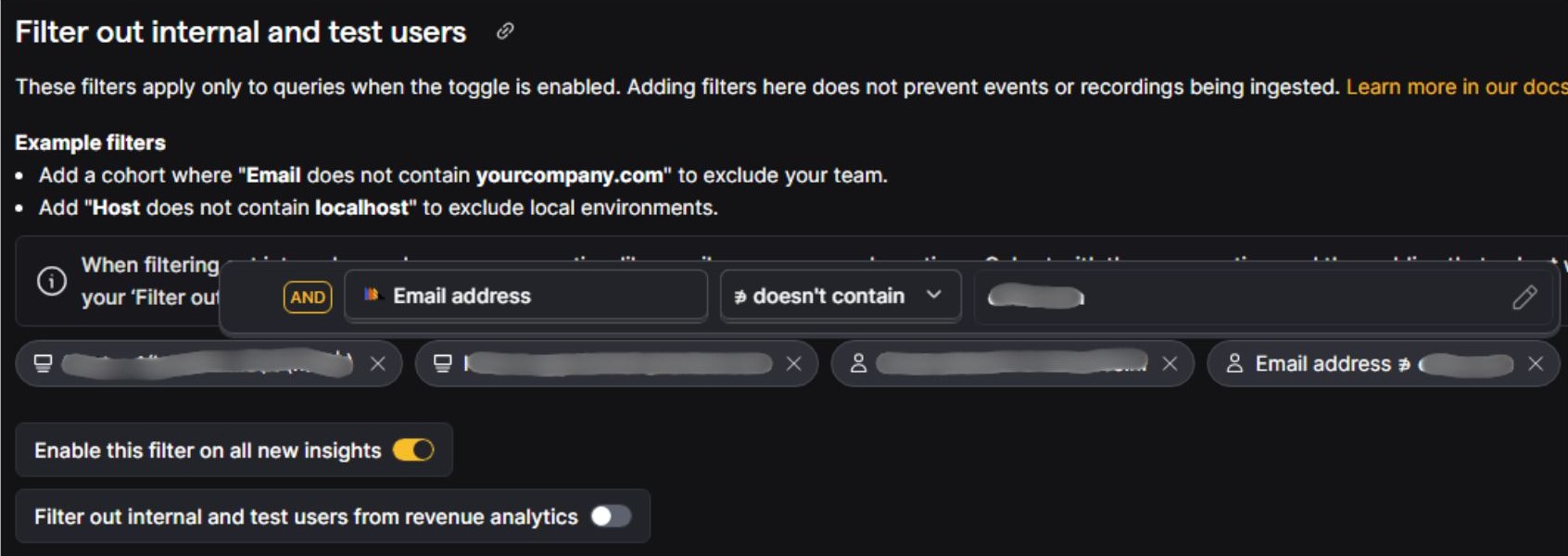
Internal user filtering based on Email Address (exclude internal domains or specific testers):
This removes traffic from anyone using a company email address or known tester accounts.
Examples:
- Email address doesn’t contain yourcompany.com
- Email address doesn’t contain testvendor.com
- Email address doesn’t contain partnercompany.net
- Email address does not match regex (qa@|@contractor-domain\.com|@staging\.io)
Use this when:
- Your team logs into the product with their real company emails.
- You have QA accounts that generate artificial activity.
- You want to exclude contractors or partners with unique domains.
- You want a scalable way to block multiple accounts or domains without listing each one manually.
Regex allows you to block entire groups without typing each account individually.
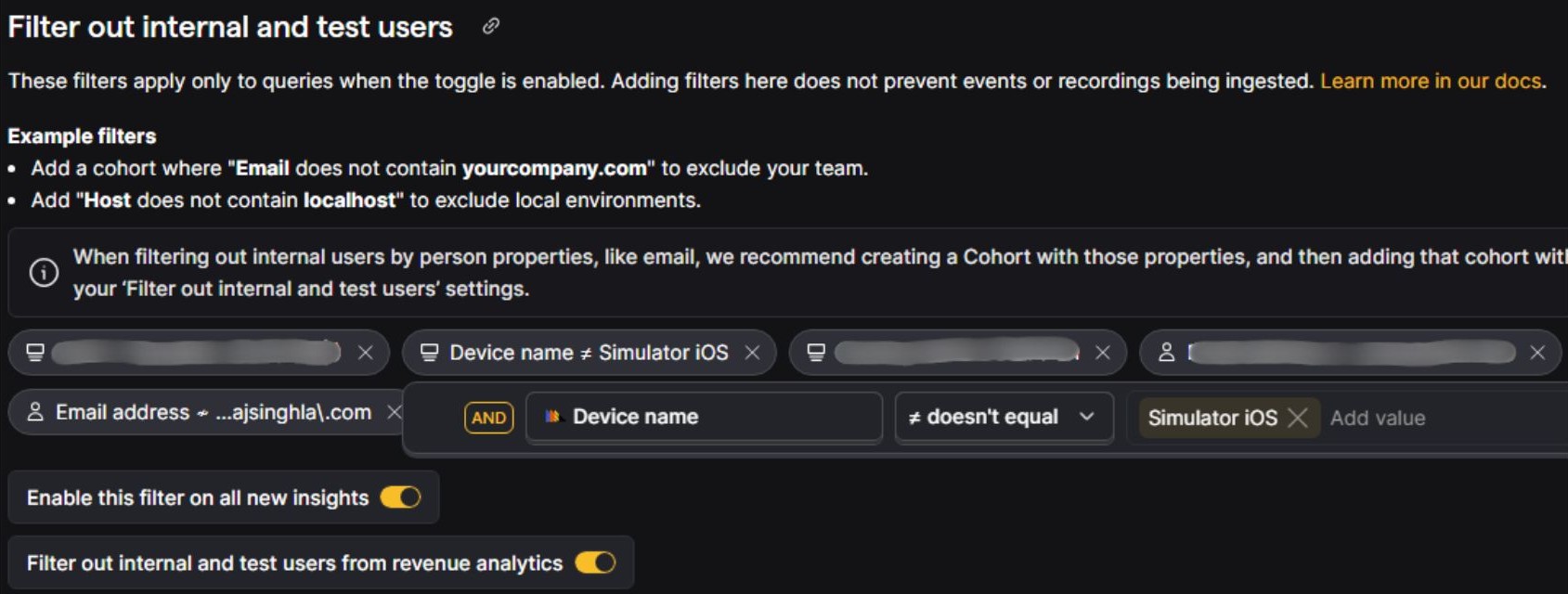
Internal user filtering based on Device Name (exclude emulators / simulators):
Mobile teams often test features using iOS or Android simulators, which generate non-representative event patterns. Excluding them keeps product analytics stable.
Example:
- Device name ≠ iOS Simulator
- Device name ≠ Android Emulator
If your team ships a mobile app or tests mobile web workflows, this filter stops simulated sessions from inflating daily active users or skewing onboarding flows.
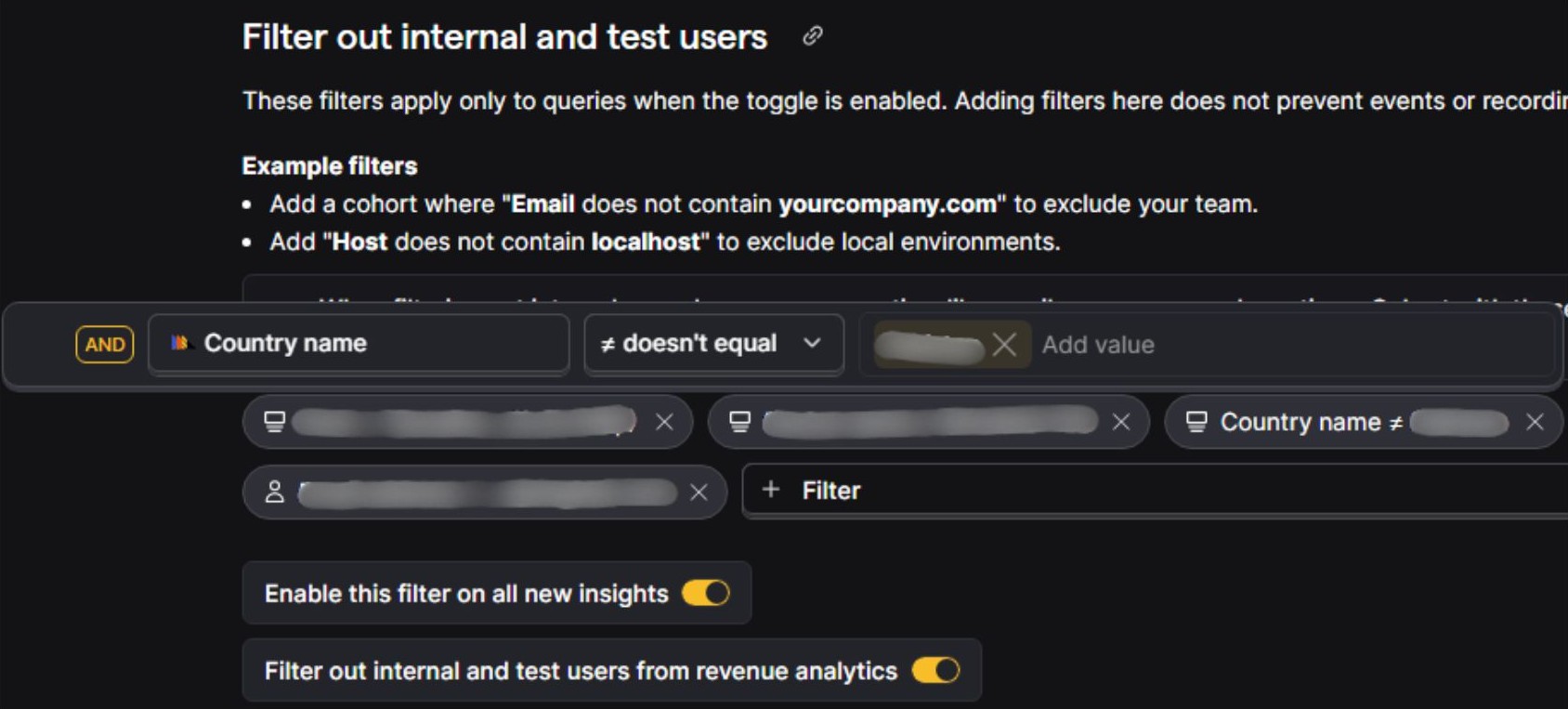
Internal user filtering based on Country Name (exclude regions your team operates from):
Example:
- Country name ≠ InternalTestingCountry
This is useful when:
- Your internal team is all located in the same country.
- You conduct QA from a region that doesn’t match your actual market.
Country filtering isn’t perfect for global teams, but in some setups, it’s a clean and reliable signal.
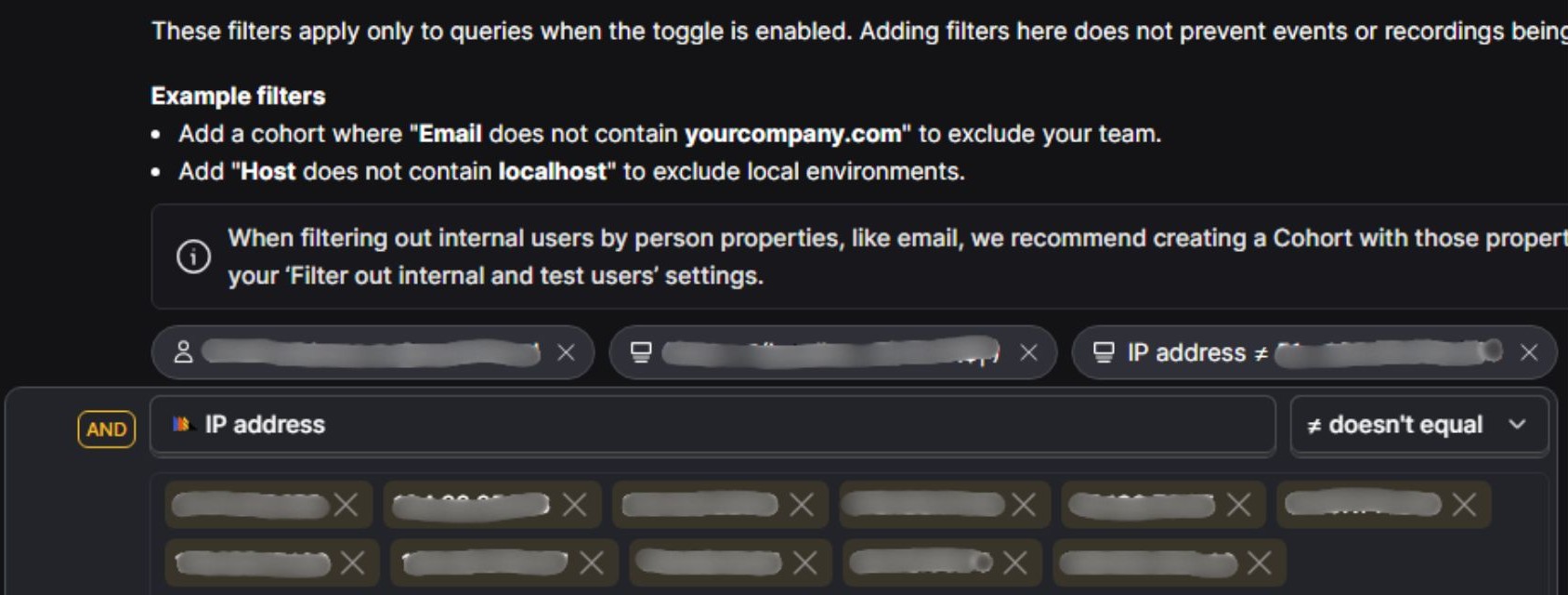
Internal user filtering based on IP Address (when applicable):
Many teams also block specific IP ranges to avoid accidental data pollution from office networks or corporate VPNs.
Examples:
- IP address does not contain 192.168.x.x
Use this when your team works from:
- A shared office network
- A dedicated VPN or proxy
- A specific geographic location
This filter isn’t always necessary, especially if email filtering is already in place, but it adds another safety net.
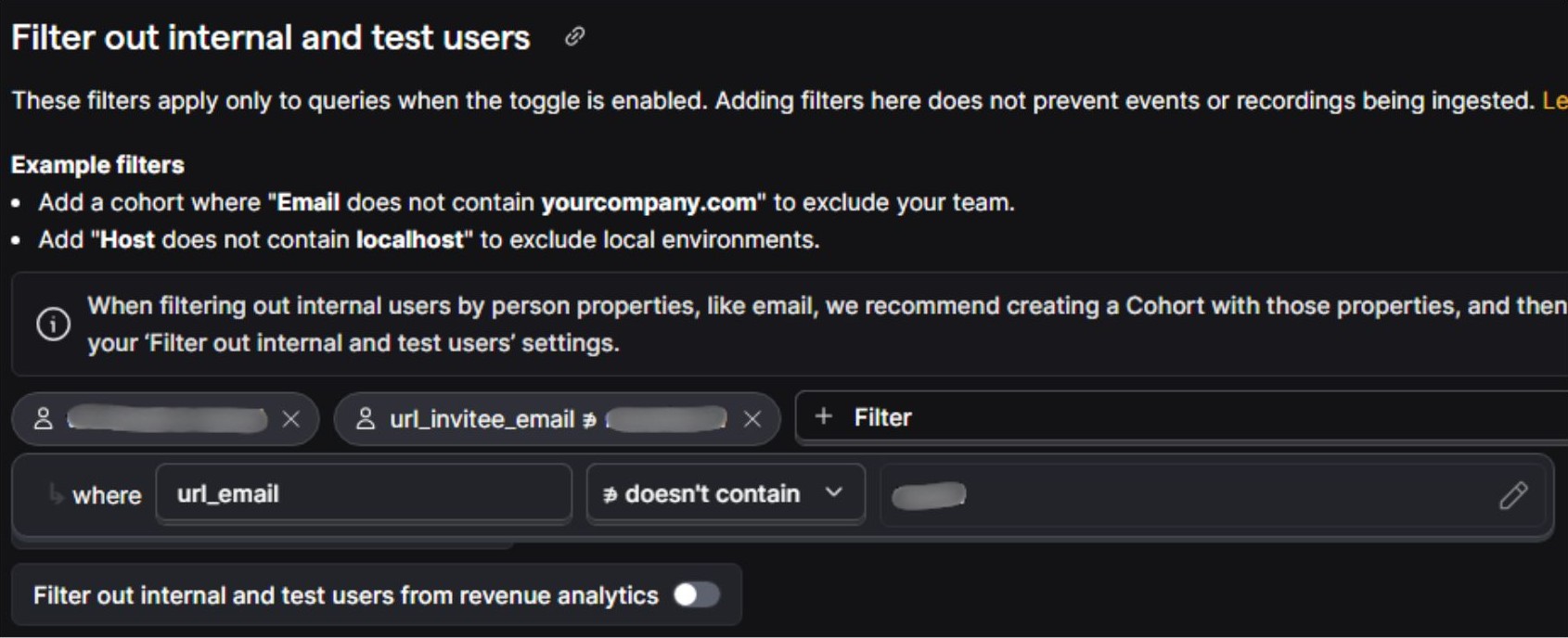
Internal user filtering based on URL Parameters (exclude internal sessions passed through links):
Sometimes internal users access your product through URLs that include email parameters; usually from invite flows, testing share links, or onboarding flows. These parameters can identify the user even before they authenticate.
Two common examples (generalized):
- url_email doesn’t contain yourcompany.com
- url_invitee_email doesn’t contain yourcompany.com
Use this when:
- Your internal team tests onboarding, invitation flows, or referral links.
- Email addresses appear in query parameters (e.g.,
[email protected]). - You want to filter internal sessions even before the user logs in or is identified.
This type of filter is valuable for removing noise caused by team members repeatedly testing share links or referral journeys.
Read this article to learn everything you need to know about Filters.
3. Use Multiple Filters if Needed
PostHog supports multiple rules at once, helping you build a comprehensive internal user exclusion filter. Combine filters like IP address + email domain for better accuracy.
4. Apply Globally or Per Insight
You can choose to:
- Toggle “Enable this filter on all new insights” for global filtering
- Or manually apply filters on individual reports or dashboards
Adding these filters ensures you’re analyzing clean, trustworthy data. This is especially important when you rely on PostHog for product decisions, marketing performance, or feature testing.

Conclusion
Setting up PostHog internal user filtering is one of the best ways to maintain clean analytics and improve decision-making. Whether you’re launching experiments or measuring product engagement, filtering out your internal team ensures your data reflects real users.
PostHog also has a detailed guide on this topic; you can check it out here.
More Tutorials You Might Like
If you found this guide helpful, check out our other tutorials to level up your analytics game:
PostHog Slack Integration: Send Event Alerts to Slack
Set Up a PostHog Alert for Your Website
Frequently asked qusetions
Does filtering internal users in PostHog delete their events or change billing?
No. The “Filter out internal and test users” feature works at the analysis level, not the ingestion level:
Events from internal users are still captured and stored in PostHog.
Filtering simply removes them from the insight or dashboard you’re looking at, so metrics don’t include that traffic.
If you want to stop sending internal data altogether (e.g. to reduce event volume), you need to handle that in your implementation: disable tracking on dev/staging hosts, add config checks, or avoid sending events for internal users.
Where do I turn PostHog’s “Filter out internal and test users” on or off?
There are two places involved:
Project settings – define which filters mark a user/session as internal.
Go to Project settings → “Filter out internal and test users”.
Add your filters there (email domains, IPs, hosts, cohorts, etc.).
Insight-level toggle – actually enable/disable the filter for a specific report.
When editing or creating an insight, use the “Filter out internal and test users” toggle in the filters panel.
ON = insights exclude traffic matching your internal filters. OFF = all traffic visible.
What’s the difference between project-level internal filters and insight-level filters?
Project-level filters (Settings):
Define how PostHog recognizes internal/test users (e.g. “email doesn’t contain @mycompany.com”, “host doesn’t equal localhost:3000”). These rules live in Project settings → Filter out internal and test users and are shared across all insights.Insight-level toggle:
Decides whether those project-level rules are applied to a specific graph, funnel, or dashboard. The toggle simply adds your internal filter group as extra filters whenever it’s turned on.
You can still add normal filters directly on an insight (e.g. “country = US”) even when the internal user filter is off.
How do I filter internal users by IP address in PostHog?
You have two main options:
Using the internal user settings (recommended for analysis):
Go to Project settings → “Filter out internal and test users”.
Add a filter on your IP-related property (e.g.
IP,ip, or a customoffice_ipproperty if you set one).Use an operation such as “doesn’t equal” or “doesn’t contain” with a comma-separated list of internal IPs or ranges.
Example pattern:
ip ∉ 1.2.3.4, 5.6.7.8(doesn’t contain these IPs)This means that when the toggle is on, PostHog will show events whose IP does not match your office IPs (i.e. real users).
At tracking time (for ingestion control):
If you want to avoid sending events at all from office IPs, implement logic in your backend or frontend to skip tracking when the request comes from a known internal IP.
How do I filter internal users by email domain or user properties?
The most stable approach is:
Use a person property like
emailand filter for “doesn’t contain @yourcompany.com” so you only see users who aren’t internal. PostHog’s own tutorial uses this pattern:email ∉ @posthog.com(“doesn’t contain”).Alternatively, add a dedicated boolean property like
is_employeeoris_test_userto your events or people and filter on that property.
Then add that filter in Project settings → Filter out internal and test users and toggle the feature on inside your insights.
How can I exclude QA or staging sessions using URL or host filters?
Very common pattern:
Host-based filters:
Add a filter on theHostproperty and exclude your dev environments, e.g.:Host ≠ localhost:8000, localhost:3000, staging.yourapp.comURL or query param filters:
If QA uses special URLs like?test_session=true, filter out events whereCurrent URLcontainstest_session=trueor where a custom propertyis_test_sessionis true.
You can combine these with email/IP filters so that both staging traffic and internal people on production are excluded when the toggle is on.
Can I use cohorts to manage internal users in PostHog?
Yes, and PostHog explicitly recommends it now for person-property–based internal filtering:
Create a cohort that defines internal users (e.g. email domain, role property, or custom flags).
In Project settings → Filter out internal and test users, add a filter like “Person is not in cohort Internal users”.
This gives you a single place to update who counts as internal (the cohort), which is cleaner when people join/leave the company or when you change criteria.
Why do I see fewer events in insights than in the Live / Activity view?
Live/Activity views often show all events as they arrive, while product analytics insights may apply:
Your “Filter out internal and test users” toggle
Any other filters on the insight or dashboard
If you’re missing events in charts but can see them in real-time views, the first thing to check is whether internal/test filtering is turned on and whether your filters are accidentally excluding too much traffic.
How should remote teams and VPN users be handled in internal filters?
IP-based filtering alone breaks down when:
People use dynamic home IPs
Everyone connects through a VPN or multiple exit nodes
In those cases, use identity-based filters instead of just network-based ones:
Email domain:
email doesn’t contain @yourcompany.comA boolean flag:
is_employee = trueCohorts built from HR / directory data
Then apply those cohorts or person properties in “Filter out internal and test users” so internal people are excluded regardless of where they’re connecting from. (+)
Does internal user filtering work for both PostHog Cloud and self-hosted?
Yes. The internal and test user filter is a product feature that works in both PostHog Cloud and self-hosted instances. The GitHub issue discussing confusion around the filter specifically references both environments.
The UI and behavior are essentially the same: you configure filters in project settings and toggle them per-insight.
What are common mistakes when setting up internal user filters in PostHog?
Some recurring problems PostHog has seen:
Using the wrong operator direction – e.g.
email contains @yourcompany.cominstead ofemail doesn’t contain @yourcompany.com, which can result in no data when the toggle is on. This has been common enough to be logged as a UX issue.
Filtering on properties that aren’t set everywhere, which can unintentionally drop events that don’t have that property.
Expecting filters to be retroactive on person changes – PostHog stores a snapshot of person properties at event time; removing or changing a property later doesn’t change historical events.
Double-check filter logic (“doesn’t contain” vs “contains”) and confirm which events actually have the properties you’re filtering on.
How can I confirm my internal filters are working correctly?
A simple validation workflow:
Use a known internal session:
Visit your app as an internal user (office IP, internal email, etc.) and trigger a few events.Check Live / Activity:
Confirm those events appear there.Open a test insight:
With the internal filter off, you should see those internal events.
With the filter on, those internal events should disappear from the graph or table.
If they’re still showing when the toggle is on, your filter conditions are likely too broad, pointed at the wrong property, or inverted (using “contains” instead of “doesn’t contain”).
Should I rely only on PostHog filters, or also prevent internal tracking in code?
Use both, for different reasons:
PostHog internal user filtering (this article):
Great for analysis – you keep all raw data but exclude internal users from reports, funnels, and dashboards.Instrumentation-level exclusion:
Useful when you want to avoid sending events at all from certain environments or users:Disable tracking on localhost and staging hosts
Add config flags that skip tracking for employees
Use backend checks to avoid logging internal system actions
For most teams, the practical setup is: disable obvious dev/staging noise in code, then use PostHog’s “Filter out internal and test users” to clean up anything that still makes it through.