
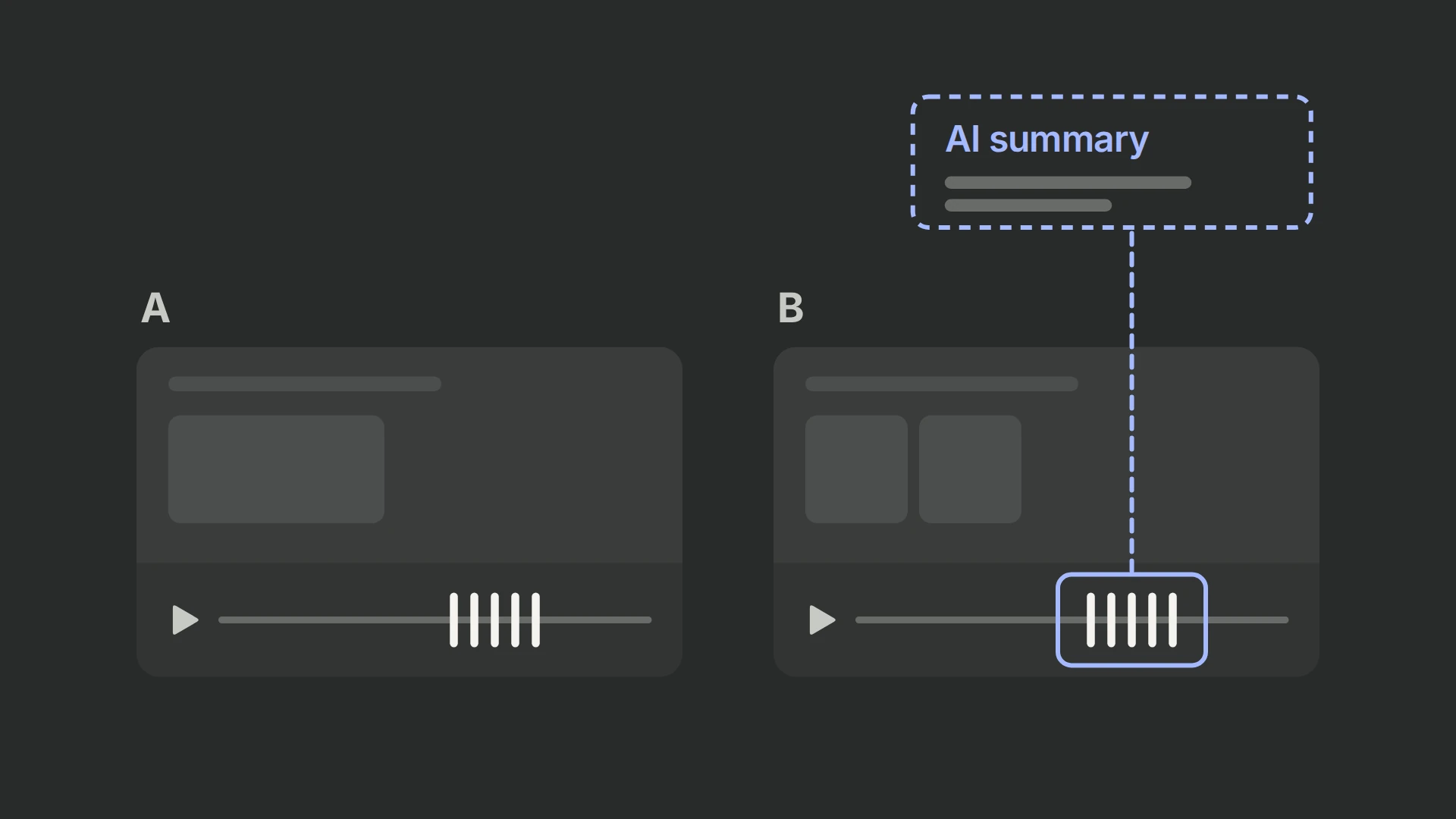
Use PostHog Session Replay to answer a defined behavior question, not to accumulate recordings. Set capture boundaries before recording, protect sensitive data, sample enough sessions to cover the relevant outcomes, and treat AI-generated experiment summaries as hypotheses that must be checked against recordings and quantitative results.
Choose the question before the capture rule
Start with the decision you need to make: why users abandon a checkout, where a form fails, or how behavior differs between experiment variants. Then identify the page, event and time window needed to observe that behavior. Recording everything can create noise, cost and privacy exposure without improving the decision.
| Question | Useful capture boundary | Important limitation |
|---|---|---|
| What happens on product pages? | URL rule covering the relevant product paths | Confirm the rule matches every intended URL and no sensitive routes |
| What happens around an action? | Event or URL capture that includes the needed lead-up | A trigger that begins recording at the event cannot explain earlier behavior |
| How do experiment variants differ? | Experiment-linked recordings sampled across both arms and outcomes | Replay selection cannot estimate the treatment effect |
Configure capture deliberately
PostHog exposes replay controls under Session Replay settings. URL matching can focus capture on relevant paths; event triggers can focus on a moment; sampling limits volume; and duration filters can exclude very short sessions. Exact defaults and SDK behavior can change, so validate the current configuration in your project rather than treating a historical screenshot as a permanent specification.
Test the rule with controlled sessions. Confirm when recording starts and stops, whether single-page navigation is included, how identity changes are handled, and whether missing recordings reflect sampling, browser restrictions, ingestion failure or genuinely absent behavior.
Protect privacy before enabling richer capture
Review text, input, console-log, network and canvas capture separately. Mask or block sensitive elements at collection time when possible; do not rely on reviewers to avoid private data after it has been recorded. Payment details, authentication secrets, health information, customer messages and personal identifiers should not enter a broadly accessible replay library.
Give access only to people who need it, define retention, and document when a replay may be shared outside the product team. A recording is customer data, not a generic illustration. Use synthetic or specifically permissioned sessions in public examples.
Review experiment recordings and validate AI summaries
In experiment results, PostHog can summarize linked session replays and compare patterns across variants. Use that summary to prioritize review—not as a causal explanation or a replacement for experiment statistics. An AI summary reflects the recordings available to it, including their capture rules, sampling and missingness.
Use this sequence:
| Step | Action | Evidence produced |
|---|---|---|
| 1. Confirm the experiment | Check variant assignment, primary metric, run state and analysis window | The quantitative decision context |
| 2. Build a replay sample | Include each arm, converters and non-converters, relevant devices, and failures | A coverage table, not a representative-population claim |
| 3. Read the summary | Turn each claimed pattern into a testable observation | A hypothesis list |
| 4. Inspect recordings | Open examples supporting and contradicting each observation | Confirmed observations and rejected inferences |
| 5. Corroborate quantitatively | Check events or breakdowns using the same eligibility/window | Frequency and scope, where measurable |
| 6. Decide the next action | Fix a verified defect or design a follow-up test | A bounded decision with owner and guardrail |
For example, a summary might say treatment users “hesitated at pricing.” Replay review may confirm repeated scrolling in some treatment sessions but also reveal the same behavior in control. The safe record is the observed interaction and its coverage—not a claim that price anxiety caused the experiment result.
Sampling without cherry-picking
Do not watch only dramatic failures or only the winning arm. Record how many replays were available and reviewed for each arm and outcome. Include ordinary sessions, non-converters and sessions that contradict the emerging story. If one arm has materially fewer usable recordings, report the imbalance instead of treating silence as evidence.
Replay is qualitative evidence about what occurred in captured sessions. It does not supply prevalence unless the capture and sampling design support that calculation, and it cannot prove a psychological mechanism. Use metric breakdowns for quantitative subgroup questions and A/B testing metrics for the outcome decision.
A practical review checklist
Before acting, verify the capture rule, sample coverage, masking, experiment window, variant identity, missing-recording causes and at least one counterexample. State which observations were directly seen, which were produced by AI, which were corroborated by events, and which remain hypotheses.
PostHog’s Session Replay documentation and experiment documentation are the current product references. The historical replay-summary release entry establishes feature provenance, not permanent UI behavior.