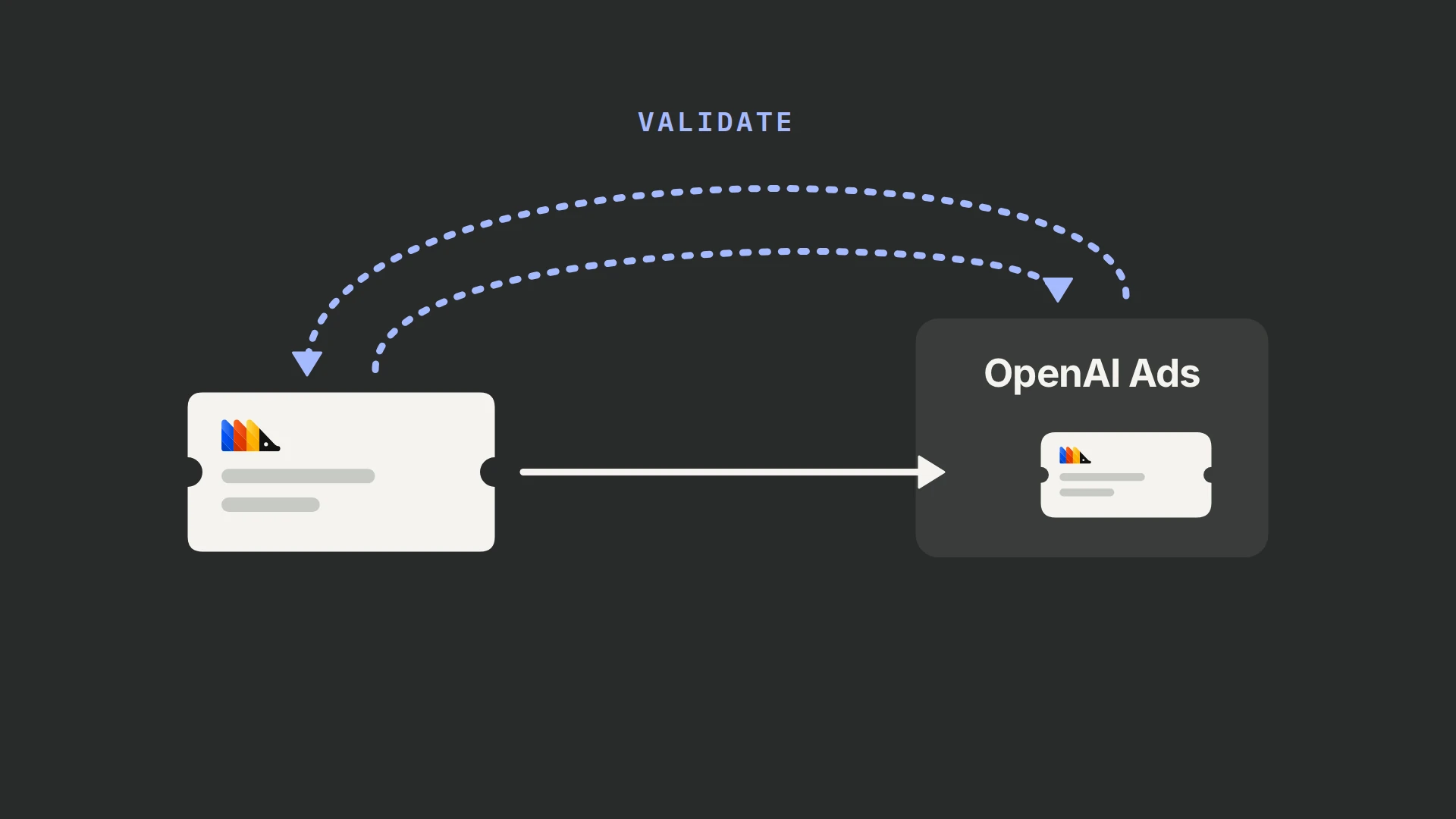
OpenAI’s Conversions API sends backend conversion events to OpenAI for measuring ads shown in ChatGPT. PostHog’s OpenAI Ads Conversions destination sends selected PostHog events to that API, alongside or independently of the browser Measurement Pixel. (+ / +) For an integration outside PostHog, use OpenAI’s CAPI setup guide.
Check the amount’s units before enabling delivery: OpenAI expects integer minor currency units. Also plan how the conversion will carry its click or browser reference, email, or customer ID. Our ad destinations overview covers the shared prerequisites, person-property timing and delivery limits.
What you need
- An OpenAI Ads account with a Pixel ID and Conversions API key.
- PostHog events for the actions you want to measure, with original timestamps and recorded advertising permission.
- A click reference, browser reference, email or pseudonymous customer ID for the destination’s matching inputs.
- A shared conversion ID if the Measurement Pixel and PostHog will report the same action, and integer minor-unit amounts if you report revenue.
Step 1: Connect the Pixel ID and CAPI key
Open the conversions tab in OpenAI Ads Manager and provision a Pixel ID and Conversions API key. (+) Use that advertising key in this destination.
In PostHog, open Data pipeline → Destinations → New destination, search for OpenAI Ads Conversions, then click + Create. (+ / +) Enter Pixel ID and Conversions API key. The template posts to https://bzr.openai.com/v1/events?pid={pixelId} with bearer authentication. (+)
PostHog marks this template Experimental and offers no official support for unexpected issues. Verify its requests before enabling delivery. (+)
Step 2: Replace the starting mappings
Eight mappings are enabled initially. Their source-event names may differ from yours, so remove unused mappings, especially Page viewed, and select the actual PostHog event for each conversion you intend to send. (+)
| Mapping | Default PostHog event | OpenAI event type |
|---|---|---|
| Page viewed | $pageview | page_viewed |
| Order created | Order Completed | order_created |
| Checkout started | Checkout Started | checkout_started |
| Items added | Product Added | items_added |
| Contents viewed | Product Viewed | contents_viewed |
| Registration completed | Signed Up | registration_completed |
| App installed | Application Installed | app_installed |
| App opened | Application Opened | app_opened |
You can add mappings for other choices, including lead_created, appointment_scheduled, subscription_created and trial_started. The template selects the required data.type for you. It does not expose product arrays or a subscription plan ID; add those only through a deliberate source-code extension.
Use a standard event when it describes the action. For a custom event, choose Custom and enter an explicit Custom event name: 1–64 letters, digits, underscores or hyphens, starting and ending with a letter or digit, and not a standard event name. (+) Keep the lowercase name identical to the custom event configured in Ads Manager.
The template’s custom-name default is {event.event}. It trims, lowercases and changes spaces to hyphens, but its local check does not enforce every API restriction. Choose a name such as the illustrative quote_requested rather than relying on automatic cleanup.
For app_installed or app_opened, use Action source → Mobile app. These two events are server-side events; the Measurement Pixel does not send them. (+)
Step 3: Filter each conversion mapping
Select the exact source event in each mapping and require the fields it needs. For an illustrative purchase, require conversion_id, amount_minor and currency. For a web conversion, also require the conversion-page URL. Replace these generic property names with yours and avoid overlapping mappings.
Apply the matching-data and consent conditions to every mapping. A browser SDK opt-out stops browser capture (+); it does not stop your server or billing provider sending events. Record permission in a property such as ads_consent = true, include it on backend conversions, and require it in the destination’s filters. (+)
Switch on Filter out internal and test users and apply the exclusions in our internal-user filtering guide. Also exclude staging, localhost and QA events. Use inline person-property filters for this destination; behavioral cohort conditions can make its filters fail. (+)
This destination skips a conversion unless it has at least one of oppref, obref, email or external ID. IP address and user agent alone do not pass its guard. The skip is logged, so check for an actual request before counting an invocation as delivered. (+)
Step 4: Preserve oppref and the browser reference
Send oppref as the original opaque string at event level. If the Measurement Pixel runs, its __obref cookie provides a separate browser reference: send that value unchanged as user.obref. Collect and forward the cookie only with the required measurement consent, and stop sending it after consent is revoked. (+)
PostHog’s JavaScript SDK captures oppref from the landing URL from version 1.435.6 onward. (+) The current SDK masks it to <masked> when personal-data masking applies. It does not read __obref for you. (+)
The destination’s default click lookup is {event.properties.oppref ?? person.properties.oppref ?? person.properties.$initial_oppref}. Its browser-reference default is {person.properties.$obref}. (+) Replace the click lookup with this guard so a masked value is omitted:
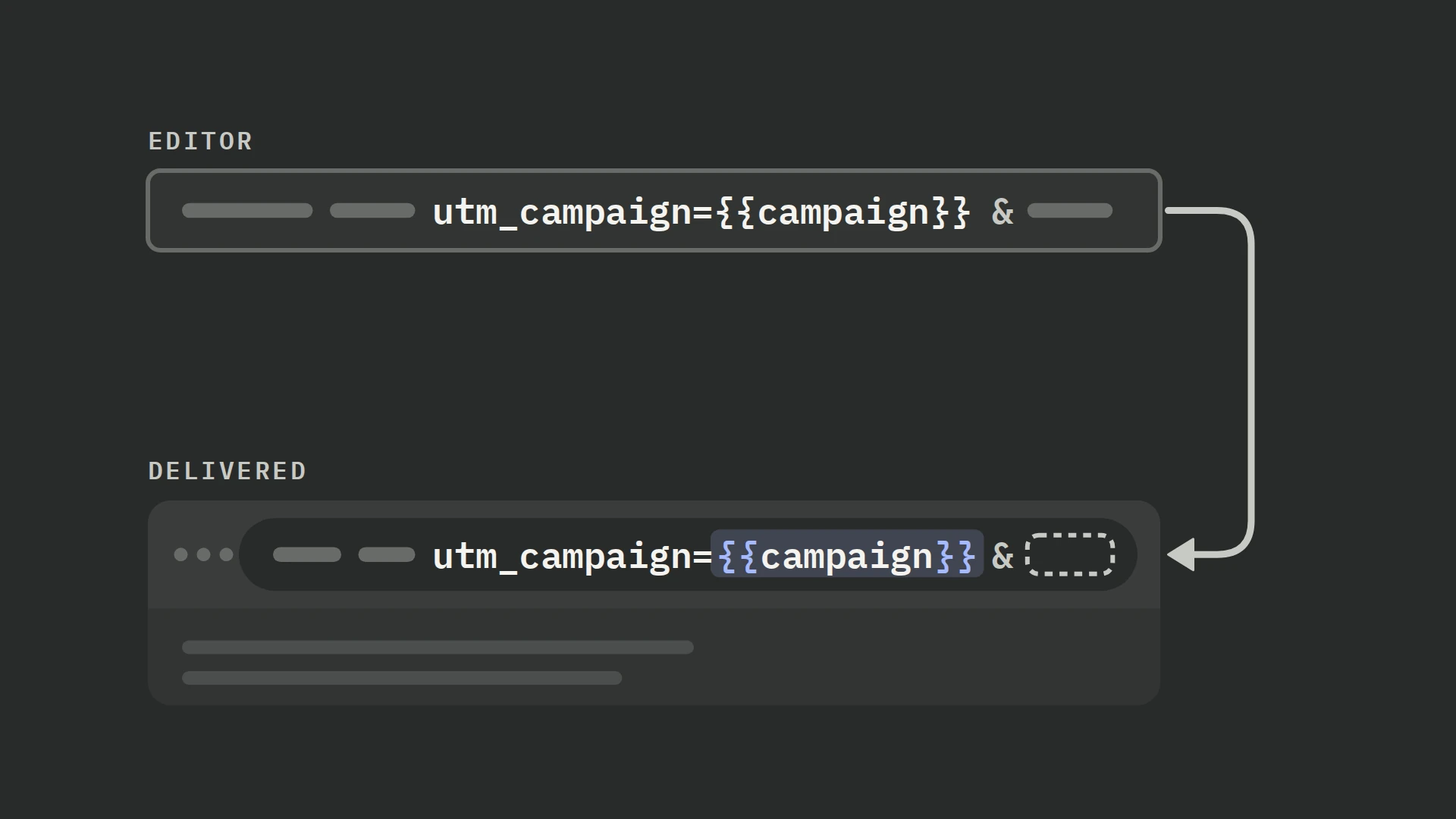
{not empty(event.properties.oppref ?? person.properties.oppref ?? person.properties.$initial_oppref) and (event.properties.oppref ?? person.properties.oppref ?? person.properties.$initial_oppref) != '<masked>' ? (event.properties.oppref ?? person.properties.oppref ?? person.properties.$initial_oppref) : null}Follow an ad click through redirects and inspect the landing event. If an older SDK does not capture oppref, upgrade it or capture and preserve the parameter explicitly. For a later backend conversion, carry the reference with the customer record or send it on the event. Our ad URL parameters guide covers that capture and persistence work.
After the Pixel creates __obref and consent permits reading it, copy its value to the PostHog property $obref. To accept that property on the conversion event as well as the person, use:
{event.properties.$obref ?? person.properties.$obref}Do not hash either reference, and do not replace a masked click reference with a different stored value. Preserve consent state with the backend conversion so an old saved browser reference is not sent after permission changes.
Step 5: Map email, customer ID and visitor context
The template defaults Email address to {person.properties.email} and External ID to {person.properties.external_id}. It trims and lowercases email before hashing it into emails_sha256. It trims the external ID, preserves its case and hashes it into external_ids_sha256. (+)
Supply a raw email and a stable pseudonymous customer ID to these inputs; do not supply existing hashes. Keep the external ID’s case consistent with your browser integration. OpenAI requires trimming without case conversion for that identifier. (+)
Use these event-first inputs when the conversion event carries the identifiers. A blank event value falls back to the person; both blank means the field is omitted.
Email address:
{not empty(trim(toString(event.properties.email ?? ''))) ? trim(toString(event.properties.email)) : (not empty(trim(toString(person.properties.email ?? ''))) ? trim(toString(person.properties.email)) : null)}External ID:
{not empty(trim(toString(event.properties.external_id ?? ''))) ? trim(toString(event.properties.external_id)) : (not empty(trim(toString(person.properties.external_id ?? ''))) ? trim(toString(person.properties.external_id)) : null)}The default IP address is {event.properties.$ip} and User agent is {event.properties.$raw_user_agent}. For a backend conversion, remap them to the visitor’s saved browser context; our visitor-context guide shows how. Saving that context does not change these default inputs.
In our web-to-billing setups, a page-view transformation saves the visitor’s first and latest IP on their person profile before billing events arrive. That gives the later billing event browser context to use, while the server request itself describes the sending server.
Step 6: Set amount, time and source
OpenAI expects an integer amount in the currency’s standard minor unit, with an ISO currency code whenever an amount is present. Event time is Unix milliseconds within the past seven days and no more than ten minutes in the future. Web events need a source_url with a scheme and host. (+)
The template leaves amount and currency blank. It calls toInt on the supplied amount; it does not convert base units to minor units. If an amount exists without currency, it logs a message and omits both fields. (+)
| PostHog field | Example mapping or default |
|---|---|
| Amount (minor currency units) | {event.properties.amount_minor} |
| Currency code | {event.properties.currency} |
| Event time — keep the original conversion time | {toInt(toUnixTimestamp(event.timestamp) * 1000)} |
| Source URL — default | {event.properties.$current_url} |
Use a property already stored in the correct minor units. An illustrative 10.99 USD purchase is amount: 1099; an illustrative 1099 JPY purchase is also amount: 1099. Do not multiply every currency by 100, or expect toInt to turn a decimal total into minor units.
For a web conversion confirmed by your backend, carry its original page URL in a property such as conversion_url and use this fallback:
{event.properties.$current_url ?? event.properties.conversion_url}Choose the action source that describes where the conversion happened. Keep Web for a web purchase confirmed later by the server; select Offline for an offline conversion. The default timestamp is suitable only when the PostHog timestamp records the conversion time, rather than a delayed notification.
Step 7: Share an ID with the Measurement Pixel
Use the same Pixel ID, event name and conversion ID for both integrations: the Measurement Pixel field is event_id, while the API field is id. For custom events, match custom_event_name as well. OpenAI keeps the first copy received for the matching key and ignores later duplicates. Do not rely on a later server copy to add an amount, currency or reference missing from the first copy. (+)
PostHog’s Event ID defaults to {event.uuid}. (+) Create a conversion ID once and pass it to both integrations; a separately installed Pixel does not automatically know PostHog’s UUID. Map that shared property in PostHog:
{event.properties.conversion_id}In the Pixel’s oaiq measure call, put the same event_id in the fourth, options argument. (+) Reuse it on retries and give each new conversion a new ID.
Step 8: Validate without saving conversions
PostHog’s test panel makes real HTTP requests by default. Open More and switch off Make real HTTP requests for the first run. Load a recent matching event and inspect the constructed request; a mocked call does not establish platform acceptance. (+ / +)
Inspect the Pixel ID, event type, data type, references, normalized hashes, original timestamp, shared ID, source URL and minor-unit amount. Also test an event missing all four matching inputs: it should log the skip and make no request.
The stock template posts live events and has no validation-only input. (+) Use request-level validate_only: true when you need OpenAI to validate without saving a conversion; a real request without that setting follows the live path. Integrations sending on behalf of advertisers must also identify themselves with a stable integration_source. (+)
For that validation test, click Edit source code and replace the existing let res := fetch(...) block with this one. It enables validation without saving and supplies the required integration identity for sending on an advertiser’s behalf. Keep the existing error-handling block after it:
let res := fetch(f'https://bzr.openai.com/v1/events?pid={inputs.pixelId}', {
    'method': 'POST',
    'headers': {
        'Authorization': f'Bearer {inputs.apiKey}',
        'Content-Type': 'application/json'
    },
    'body': {
        'validate_only': true,
        'integration_source': 'posthog',
        'events': [conversion]
    }
})
Allow real HTTP requests for this validation run. A valid response establishes that the submitted payload passes validation; it does not establish saved delivery, a user match or ad attribution. Check an illustrative 10.99 USD purchase arrives in the request as amount: 1099 with currency: "USD".
We ran the Hog examples in PostHog’s engine with sample events and mocked requests; we have not sent live conversions to OpenAI Ads with this setup, so complete the controlled live check below.
Before live delivery, change 'validate_only': true to 'validate_only': false and keep integration_source. Send one controlled conversion, including its Pixel copy if both integrations run. Then click Create & enable.
Step 9: Verify delivery and ad credit separately
| Outcome | What to inspect |
|---|---|
| Delivery | PostHog’s actual HTTP request and API errors. Exclude skip logs, mocked requests and validate_only requests when counting live events. |
| Matching inputs | The references and identifiers in the validated request. Check oppref is unmodified, obref belongs inside user, and email/customer ID hashing agrees with the browser integration. Their presence is not proof that a person matched. |
| Deduplication | The Pixel and API requests for one controlled conversion. Compare Pixel ID, event name or custom name, and the shared conversion ID. Also compare amount, currency and click/browser references in the Pixel and server copies. |
| Attribution | OpenAI Ads Manager campaign reporting, using the conversion definition and applicable attribution window. Receipt alone does not establish ad credit. |
In Ads Manager, Conversions is the click-through total. Where view-through reporting is available, it appears as a separate campaign metric with a one-day impression window. Do not compare PostHog’s event total with only one of those metrics and assume the difference is lost delivery. (+)
Check PostHog’s logs after enabling and after tracking changes. For unexplained differences, use our conversion tracking audit to compare the source conversions, sent requests and attributed totals.
Troubleshooting
| Symptom | What to check |
|---|---|
| Succeeded run, no request | Look for the skip log. The template needs oppref, obref, email or external ID; IP and user agent alone do not pass its guard. |
| oppref is missing | Check the final landing URL and installed SDK version. Automatic capture starts at posthog-js 1.435.6; earlier versions need explicit capture or an upgrade. |
| A masked reference reaches the API | Use the guarded click mapping and omit <masked>. |
| Web event fails without a URL | Supply the original conversion-page URL or choose the action source that describes an actual non-web conversion. |
| Custom event passes the local check but fails at the API | Require an alphanumeric first and last character and avoid standard event names. Match the name configured in Ads Manager. |
| App event is rejected | Set Action source to Mobile app for app_installed and app_opened. |
| Amount is wrong or absent | Supply integer minor units and the actual currency. An amount without currency is omitted; toInt does not scale decimal revenue. |
| Validation succeeds, but no live result follows | Restore validate_only to false before sending a live conversion. |
| Browser and API copies differ | Compare the shared ID, Pixel ID and effective event name. The first matching copy wins. |
| Old event rejected | Check milliseconds, the seven-day age limit and the ten-minute future tolerance. |
Frequently asked questions
Can PostHog send an OpenAI conversion without oppref?
Yes. This destination also accepts the Pixel’s browser reference, an email or an external ID. It skips only when all four are absent. Use the identifiers you are permitted to send rather than requiring a click reference on every conversion. (+)
Why does a custom event pass PostHog’s check but fail at OpenAI?
The template’s name check allows underscores or hyphens at the ends and does not exclude standard event names. OpenAI requires an alphanumeric first and last character and rejects standard names used as custom names. Set an explicit compliant name rather than relying on the default PostHog event name. (+ / +)
Should I send OpenAI the amount in cents?
Use the currency’s standard minor unit. For an illustrative 10.99 USD purchase, send 1099. For a currency with no decimal minor unit, such as JPY, keep the whole-unit integer. Always include the actual currency; a universal multiplication by 100 would misstate some orders. (+)
Does OpenAI validation create a saved conversion?
No, when validate_only is true. That mode validates without saving. The stock PostHog template does not set it, so apply the validation request change before allowing real HTTP requests for a test. (+ / +)