
For a while, I had PostHog’s Session Replay turned on and felt like I was doing the right thing; recording everything, capturing every user interaction, feeling productive about it. Then I actually dug into the settings, and realized I had been using it in the bluntest possible way.
Here’s what I discovered, and why it changed how I think about session recording entirely.
Watch the walkthrough
Watch our CEO Iman walk through these settings step by step:
The problem with recording everything
Session Replay in PostHog is powerful, but recording every session from every user across every page quickly becomes noise. You end up with hundreds of recordings that are hard to prioritize, harder to act on, and potentially full of data you never meant to capture.
The good news: PostHog gives you real control over this. You just have to know where to look.
If you want to go deeper, PostHog’s official Session Replay documentation covers every available option in detail.
What’s inside the Session Replay settings
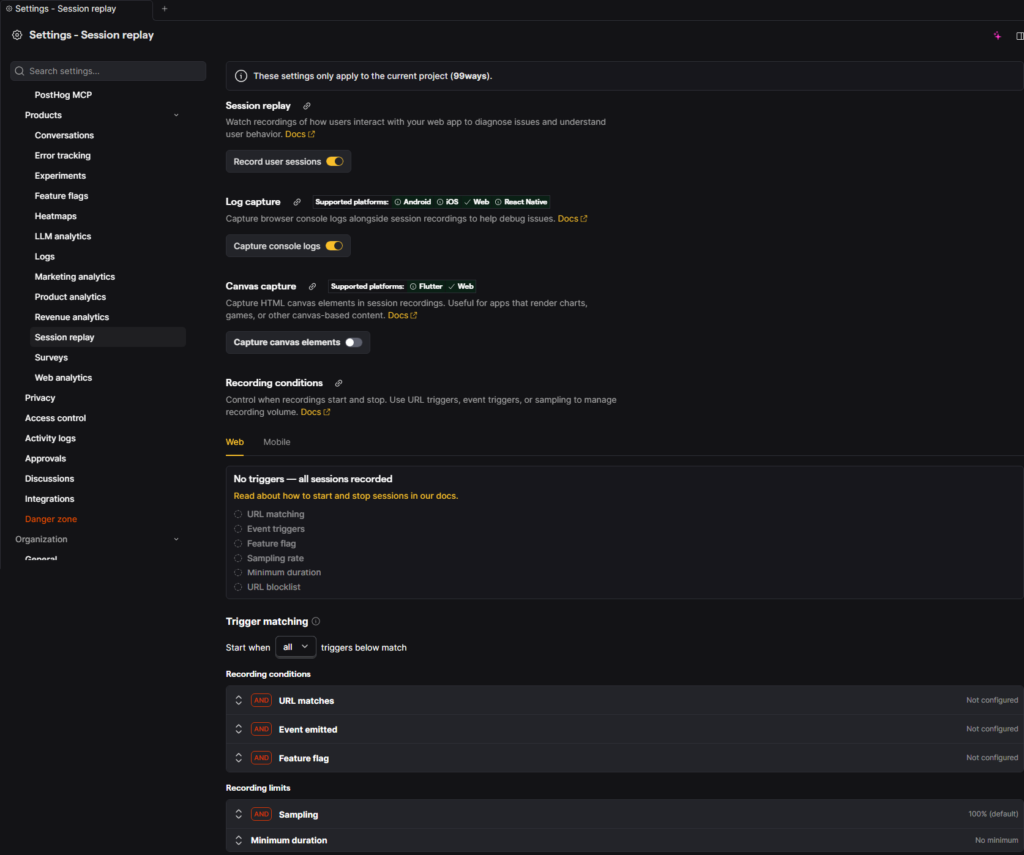
Head to Settings → Session Replay in your PostHog dashboard. The first toggle simply enables or disables recording entirely. but the interesting stuff is below that.
By default, PostHog won’t capture console logs or canvas elements. You can turn these on, and they won’t cost you extra. That said, one thing worth being deliberate about: some of these options can capture personally identifiable information (PII). If your app shows user emails, payment details, or anything sensitive in the UI, make sure you understand what each option captures before enabling it. Turning everything on without reviewing it first is a compliance risk you don’t want to discover later.
Targeting your recordings: the options that actually matter
This is where things got interesting for me. PostHog gives you several ways to make your session recordings more targeted, so you’re not drowning in irrelevant sessions.
1. URL matching
You can restrict recording to sessions where the URL matches a specific pattern, using regex. If you’re running a Shopify store, for example, you might only care about what happens on product pages. You’d write a rule that starts recording only when /products/ appears in the URL.
It sounds more technical than it is. A simple regex like /products/ is enough for most cases, and if you’re not familiar with regex, asking an AI assistant to write it for you works perfectly well.
2. Event-based triggers
Instead of triggering recording based on the URL, you can trigger it based on a specific user action, like an “Add to Cart” event. This is useful when the behavior you care about is tied to a moment, not a page.
There’s one important nuance here: event-based recording starts from the moment the event fires. It does not capture what happened before that event in the session. If you want to understand what led a user to click “Add to Cart,” this approach alone won’t show you that. You’d need to either combine it with a URL rule or use a different strategy. This is the kind of thing that’s easy to miss if you set it up quickly and assume it works like a full session recording.
3. Sampling
Rather than recording every qualifying session, sampling lets you record a percentage of them. This is useful if you have high traffic and don’t need (or want) to store every single replay.
4. Minimum duration
You can also filter out sessions that are too short; setting a minimum duration means you skip the accidental page loads and focus on sessions where users were actually engaged.
The mindset shift
The biggest thing I took away from digging into this: session replay isn’t a “set it and forget it” tool. The value comes from being deliberate about which sessions you’re capturing and why.
Recording every session on every page gives you coverage. Recording the right sessions on your high-intent pages, triggered by your key events, filtered to sessions of meaningful length, gives you insight.
That difference matters when you’re trying to actually act on what you see.
Quick summary
- Session Replay settings give you granular control over what gets captured
- Enable console logs and canvas capture cautiously; check for PII exposure first
- Use URL matching to focus on specific pages (regex required, but it’s simple)
- Use event triggers for moment-based recording. just remember it won’t show what happened before the event
- Combine sampling and minimum duration to keep your replay library focused and useful
If you’re already using PostHog and haven’t looked at these settings, it’s worth five minutes of your time. The defaults are fine to get started, but the targeting options are where the real leverage is.